Getting Started with cURL
When you want to see a website, you usually open Chrome or Safari, type a URL, and hit Enter. But did you know you can talk to that same website using nothing but text?
Before we meet our tool, cURL, we need to understand the two players in the game: the Client and the Server.
Imagine you are at a restaurant.
You (The Client): You are the one asking for something (a burger).
The Kitchen (The Server): They have the food and wait for orders to come in.
What is cURL (in very simple terms)
Before we learn about curl, let's first understand what a server is. So, a server is just a computer somewhere on the internet that:
Stores data
Runs applications
Sends information when you ask for it
For example:
When you open Instagram → your phone talks to Instagram’s server
When you open Google → your browser talks to Google’s server
So basically:
Your device sends a request
Server sends a response
That’s how the internet works.
cURL (which stands for "Client URL") is a tiny piece of software that lives inside your computer's terminal.
cURL is a tool that lets you talk to a server directly from your terminal.
Instead of using a browser…
You type a command in your terminal and send a message to a server.
Think of it like:
Browser = Fancy chat app
cURL = Raw messaging from command line
It’s a way to say:
“Hey server, send me this data.”
Why programmers need cURL?
Programmers need curl since it is powerful tool for transferring data to and from server, test API endpoints, they can also debug network requests.
As a programmer, you often:
Build APIs
Test backend routes
Check if a server is working
Debug request/response problems
Instead of building a full frontend just to test…
You can quickly test your API using cURL.
It’s fast.
It’s powerful.
It’s everywhere.
Making your first request using cURL
Let’s try the simplest possible command:
curl https://google.com
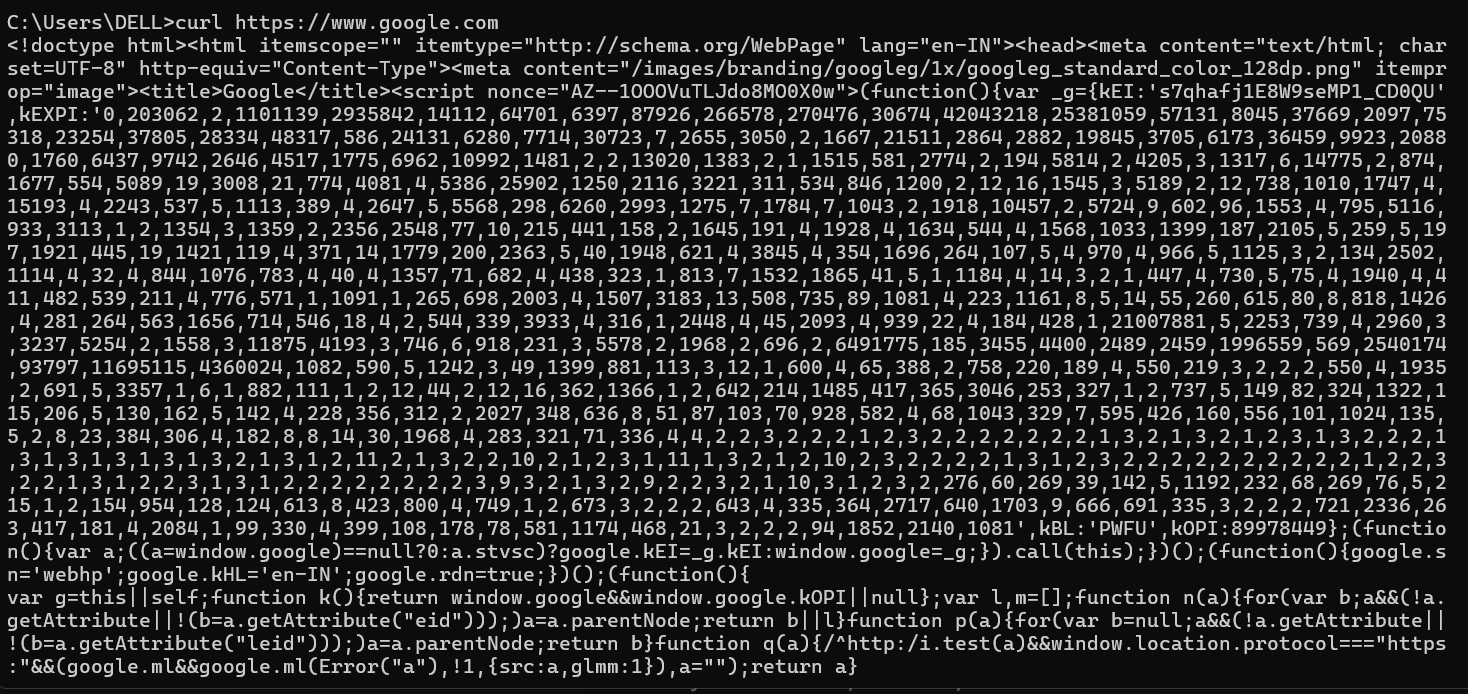
What happens here?
You are asking the server at google.com
“Send me your webpage”
The server replies with HTML (the webpage code).
Boom. That’s your first request.
Understanding request and response
Whenever you use cURL (or browser), two things happen:
Request (You → Server)
You send:
The address (URL)
The type of request (GET, POST, etc.)
Sometimes data
Response (Server → You)
The server sends back:
Status code (like 200, 404)
Data (JSON, HTML, etc.)
Example response types:
200 → Everything OK
404 → Not Found
500 → Server error
So internet is just:
Request → Response
Question → Answer
Server sends secret notes along with the data called header, let's try adding -I to your command:
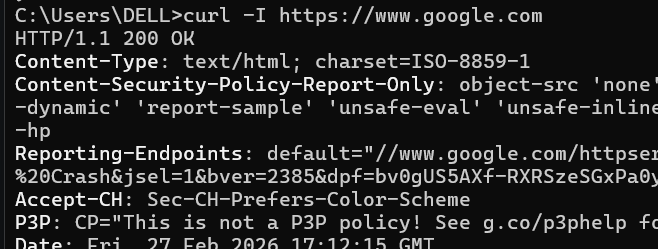
Look for the first line. It will likely say:HTTP/2 200
200 OK: This is the server saying, "I found what you wanted, no problems here!"
404 Not Found: This means the server exists, but the specific page you asked for is missing.
Using cURL to talk to APIs
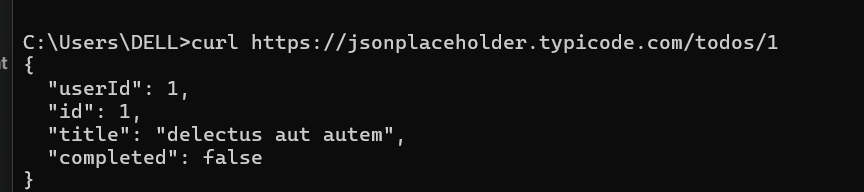
Let’s say you have this API: "curl https://jsonplaceholder.typicode.com/todos/1"
You’ll see JSON data printed in your terminal. That JSON is the server’s response. Instead of 500 lines of HTML, you’ll get a clean little block like this:
Common mistakes beginners make with cURL
1. Omitting the Protocol
If you just type curl google.com, your computer has to guess how to connect. On some systems, it might work, but on many, it will simply fail.
The Mistake:
curl google.comThe Fix: Write full with "curl https://google.com"
Why? It’s like trying to mail a letter without writing "Air Mail" or "Ground"—the post office needs to know the method of transport.
2. Forgetting Quotes for Complex URLs
This is the #1 mistake when talking to APIs. Many URLs use the & symbol to join different pieces of data together. In the terminal, & tells the computer to run a command in the background, which breaks your request.
The Mistake:
"curl https://api.com/search?item=shoes&color=blue"(The terminal will stop at the&!)The Fix:
curl "https://api.com/search?item=shoes&color=blue"
Pro-Tip: Just get in the habit of putting "quotes" around every URL you cURL. It’s safer!
3. Case Sensitivity (The 404 Trap)
While the "google.com" part isn't usually case-sensitive, everything after the slash often is.
The Mistake: curl https://www.google.com/IMAGES
The Result: A 404 Not Found error.
The Fix: curl https://www.google.com/images
The Lesson: Computers see "A" and "a" as two completely different things. Double-check your spelling!


